Online Keyboard Tester: Check If Every Key Works
 লিখেছেন iiniit Teamপ্রকাশিত ২৬ অক্টোবর, ২০২৬·3 মিনিট পড়া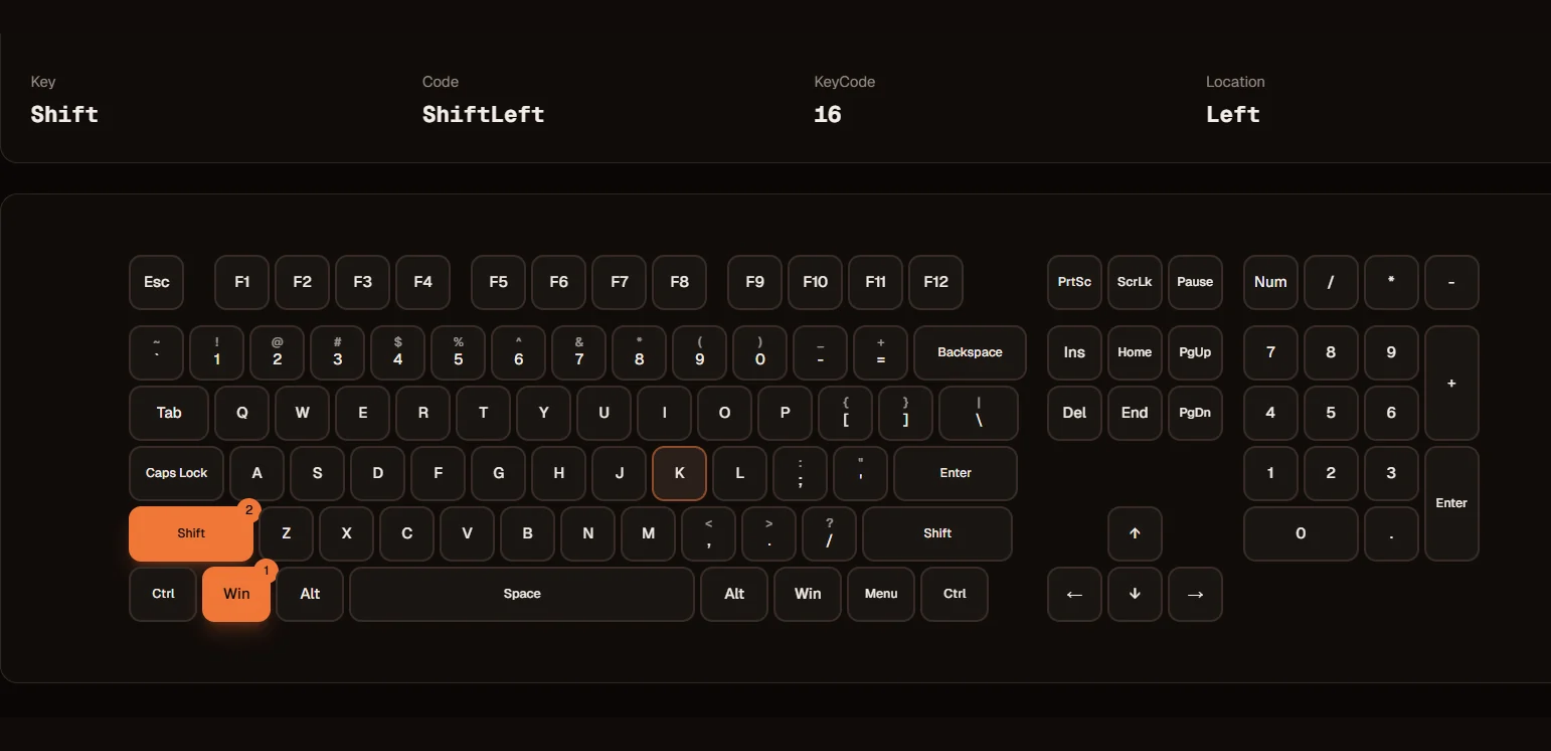
Online Keyboard Tester: Check If Every Key Works
A key on your keyboard feels different, repeats letters, or stops responding altogether? Before buying a replacement, try an online keyboard tester to find out which keys are working and which may need attention.
iiniit's Keyboard Tester lets you press keys and see their responses on an on-screen keyboard. It works directly in your browser, so there’s nothing to install and no account to create.
Why Use an Online Keyboard Tester?
Keyboard problems are not always obvious. A single unresponsive key can cause trouble when typing, gaming, coding, or working on everyday tasks.
A keyboard test can help you:
Find unresponsive keys: Check whether individual keys register when pressed.
Spot inconsistent input: Press a key several times to see whether every press is detected.
Check a new keyboard: Test a recently purchased keyboard before relying on it.
Inspect a used laptop: Check the keyboard before buying a second-hand device.
Test multiple keys: Check how your keyboard responds when several keys are pressed together.
How to Test Your Keyboard Online
Using an online keyboard tester takes only a few steps.
1. Open the Keyboard Tester
Visit kt.iiniit.com in your browser.
2. Press the Keys You Want to Check
Start typing on your physical keyboard. The corresponding keys light up on the on-screen layout when they register.
3. Check Every Important Key
Test letters, numbers, function keys, modifiers, arrow keys, and the number pad if your keyboard has one. Press suspicious keys more than once to check for inconsistent responses.
4. Test Key Combinations
If you use keyboard shortcuts or play games, try pressing multiple keys together. This can help you identify combinations your keyboard may not register correctly.
Is It Safe to Use an Online Keyboard Tester?
A good keyboard testing tool should make the process simple without asking for unnecessary access to your device.
iiniit's Keyboard Tester processes keyboard input locally in your browser. Your keystrokes are not sent to its server, according to its privacy information.
The tool is free to use and does not require installation or sign-up.
What If a Key Does Not Work?
If a key fails the test, try pressing it again and check whether the problem happens consistently. You can also reconnect an external keyboard, try another USB port, or restart your computer.
For a laptop, check whether debris is affecting the key. If the same key continues to fail, the issue could involve the keyboard hardware, connection, or software settings. An online test helps narrow down the problem, but it cannot identify every possible cause.
Test Your Keyboard Before You Replace It
You don't need to guess whether your keyboard is working properly. An online keyboard tester gives you a quick visual way to check key responses before deciding what to do next.
Open iiniit Keyboard Tester, press a few keys, and see how your keyboard responds.
Try it free: https://kt.iiniit.com/
Frequently Asked Questions
Is the online keyboard tester free?
Yes. iiniit's Keyboard Tester is free to use in your browser.
Can I test my laptop keyboard?
Yes. You can use it to check the keys on a laptop keyboard, as well as an external keyboard.
Do I need to install software?
No. Open the tool in your browser and start pressing keys.
Can a keyboard tester fix broken keys?
No. It helps identify keys that may not be responding, but physical repairs or software troubleshooting may still be necessary.
Does the tool send my keystrokes to a server?
iiniit's Keyboard Tester processes keyboard input locally in your browser; its privacy information states that keystrokes are not sent to its server.