A Simple Way for CSE Students to Share Code Between Lab Computers
 লিখেছেন iiniit Teamপ্রকাশিত ৩০ সেপ্টেম্বর, ২০২৬·7 মিনিট পড়া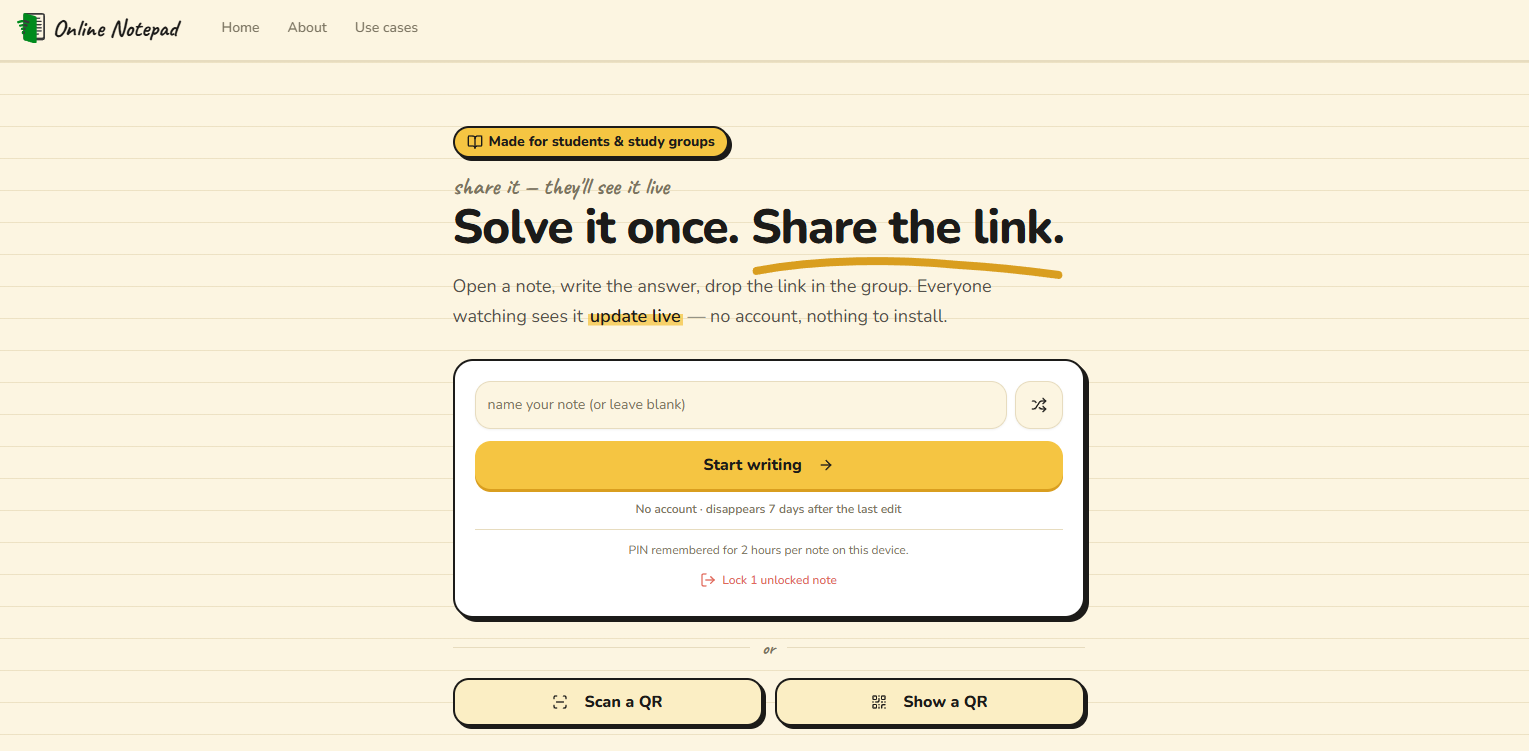
If you’re a Computer Science student, you know the drill. You’re in the lab, you’ve finally got a function working, and now you need that same code on the machine two rows over — or on your laptop, or on a teammate’s screen. But the lab PC isn’t yours. You’re logged into a shared account, USB ports are locked down, and you’d rather not spend five minutes setting up Git just to move twenty lines of Python.
Moving code between lab computers should take seconds. Too often it doesn’t. This post walks through why the usual methods slow you down and shows a genuinely simple alternative: a free, no-login online notepad you can share with a link or a QR code.
Why sharing code in a computer lab is harder than it should be
University and college labs are built for control, not convenience. That’s good for security and bad for the moment you just need to hand a snippet to yourself on another machine. Here’s what usually gets in the way.
Shared logins and locked-down machines
Most lab computers run on shared or roaming profiles that get wiped between sessions. Anything you save to the desktop may be gone tomorrow. You often can’t install software, and USB storage is frequently disabled to prevent malware — so the classic “copy it to a pen drive” trick is dead on arrival.
Git and GitHub are great — but heavy for a quick snippet
Version control is the right long-term answer for projects, and every CSE student should learn it. But committing, pushing, and pulling just to move one file between two computers is a lot of ceremony. On a shared lab machine you’d have to log in to GitHub, clone or configure credentials, and then remember to log out so the next student can’t see your account. As one long-running discussion on best practices for using Git on a shared lab computer shows, it’s doable but fiddly.
Email and chat apps mangle your formatting
Emailing code to yourself works, until you paste it back and the indentation is destroyed or your quotes turn into “smart quotes.” Chat apps compress whitespace and wrap lines. For a language where indentation is syntax (hello, Python), that’s a real problem.
SSH, SFTP, and WinSCP need setup you may not have
Command-line transfer tools like scp, sftp, rsync, and GUI clients like WinSCP or FileZilla are the professional route for moving files between machines, and many universities document them for exactly this purpose. But they assume you have SSH access, credentials, and permission to use them — not always true on a locked lab PC, and overkill when you just want to share a snippet fast.
The simpler idea: a temporary, shareable online notepad
Here’s the shift in thinking. You don’t need to transfer a file — you need the same text to appear on two screens. That’s a much smaller problem, and it has a much simpler solution: a web page that holds your code and that anyone with the link (and a PIN) can open.
A free tool like Online Notepad is built for exactly this:
No account, no install. It runs in the browser. Nothing to log into on a shared machine, nothing to leave behind.
Share with a link or a QR code. Open the note on the lab PC, then scan the QR with your phone or open the link on the next computer — the code is right there.
Live updates. As you type and save, anyone with the note open sees the changes within seconds. Great for showing a fix to a classmate in real time.
Paste code with formatting intact. Snippets keep their structure, so indentation survives the trip.
PIN-protected. Every note is locked with a PIN, so a random person can’t stumble onto your work.
It cleans up after itself. Notes auto-delete a week after the last edit, so you’re not leaving code lying around on a public service forever.
It’s the same lightweight, no-login philosophy behind tools like Wipsy, which was built specifically so students can share code and notes in labs without creating an account.
How to share code between two lab computers in under a minute
Here’s the whole workflow, start to finish.
Open the notepad on the first computer. Go to note.iiniit.com, type a name for your note (or let it generate a random one), and set a short PIN.
Paste your code. Drop your snippet into the editor. Formatting and indentation are preserved, and you can paste a screenshot of an error too.
Grab the link — or show a QR code. Copy the note’s URL, or display its QR.
Open it on the second computer. Type the same link and enter the PIN, or scan the QR with your phone to jump straight in. Your code is now on both screens.
Forget about cleanup. The note deletes itself seven days after you last touch it. Want to keep it permanently? Export it before it expires.
No commits, no credentials, no USB, no formatting damage.
Why this fits CSE students specifically
Pair programming and debugging. Solve a problem once, drop the link in your group chat, and the whole table follows along live as you type.
Study groups. Keep one shared note for a session — everyone reads and edits the same page, pastes screenshots of the textbook, and attaches the practice PDF.
Tutors and TAs. Write a clean worked example and let students scan a QR to open it on their phones instantly during office hours.
Moving your own work. Get a snippet from the lab machine to your laptop without logging into anything personal on a shared PC.
You can see more of these scenarios on the Use Cases page.
A quick word on security and privacy
Convenience shouldn’t mean carelessness, especially with graded work.
Use a PIN you don’t reuse elsewhere. The PIN is what protects the note; treat it like a password for that snippet.
Share the link and PIN over a channel you trust — anyone who has both can open and edit the note.
Don’t put secrets in shared notes. API keys, passwords, and personal data don’t belong in any temporary sharing tool. Keep those in a proper secrets manager.
Let auto-expiry work for you. Because notes disappear a week after the last edit, your code isn’t sitting on a public URL indefinitely. For real projects, still use Git — this is for the quick handoffs in between.
Frequently asked questions
What’s the fastest way to share code between two lab computers?
Paste it into a no-login online notepad, then open the same link (or scan its QR code) on the second machine. It’s faster than setting up Git or a file-transfer client for a one-off snippet.
Can I share code without creating an account?
Yes. Tools like Online Notepad and Wipsy are designed to work without any signup — you pick a note name and a PIN, and that’s all anyone needs to open it.
Will my indentation and formatting survive?
Yes, if you use an editor that preserves formatting. That’s the main advantage over email and most chat apps, which flatten or “smart-quote” your code.
Is it safe to share code this way?
It’s fine for coursework snippets when you use a PIN and share it carefully. Don’t store credentials or sensitive data, and use version control for anything you need to keep long-term.
What if I need the code permanently?
Export or copy it into a Git repository before the note expires. Temporary notepads are for quick handoffs, not archival storage.
The bottom line
Sharing code between lab computers doesn’t have to mean wrestling with locked-down machines, disabled USB ports, or Git setup you don’t have time for. When you just need the same code on another screen, a free, no-login, PIN-protected notepad you can share with a link or QR code is the fastest path — and it cleans up after itself.
Try it now: open a note at note.iiniit.com, paste your code, and share the link with your next lab computer.