How to Test a Keyboard: Check If Every Key Works
 By iiniit TeamPublished October 9, 2026·6 min read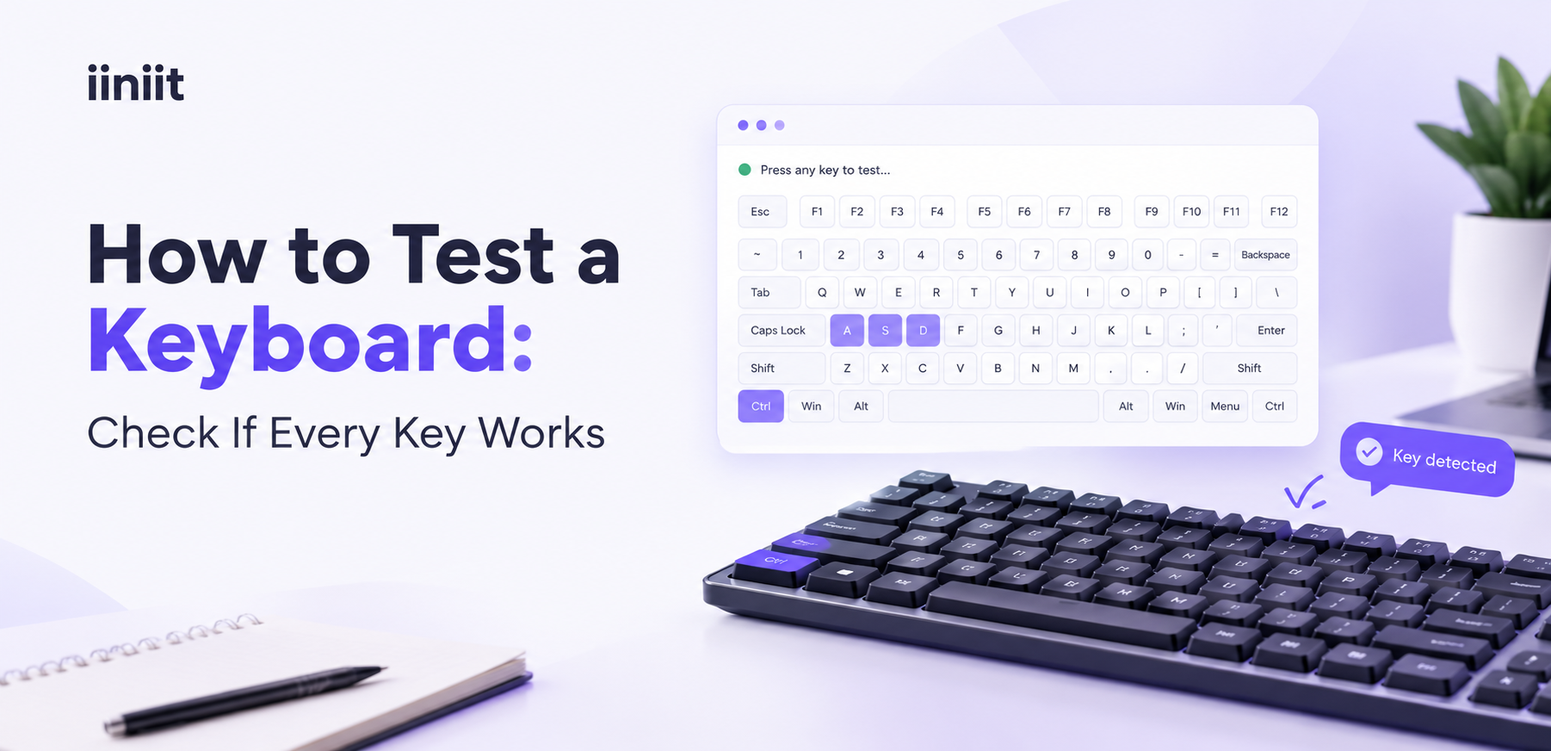
How to Test a Keyboard: Check If Every Key Works
When a keyboard starts acting strangely, the problem is not always obvious.
A key might stop responding. Some letters may appear twice. A laptop keyboard may work normally except for a few buttons. Sometimes, you may simply want to check a new keyboard before relying on it.
Knowing how to test a keyboard can help you identify the problem before spending time on unnecessary fixes or replacing hardware that still works.
Why Should You Test Your Keyboard?
Your keyboard is one of the main ways you interact with a computer. Even a single unresponsive key can interrupt your workflow.
Testing your keyboard can help you:
Find keys that do not respond.
Check whether a newly purchased keyboard works properly.
Identify problems after cleaning or repairing a keyboard.
Test a laptop keyboard before assuming it needs replacement.
Check whether every key registers correctly during gaming or typing.
A quick test can help narrow down the issue before you start troubleshooting.
How to Test a Keyboard Online
An online keyboard tester is one of the easiest ways to check whether your keys are registering.
Follow these steps:
Open an online keyboard testing tool.
Click the testing area if the page asks you to focus it.
Press each key you want to check.
Watch the on-screen keyboard for visual feedback.
Repeat the test for any key that does not appear to respond.
Check special keys, the function row, and the numeric keypad if your keyboard has them.
You can try the free Keyboard Tester by iiniit to see which keys register as you press them.
Tip: Test the keys you use most often first, then check the remaining keys systematically.
How to Check If a Keyboard Key Is Working
Start by testing a few letters, numbers, and modifier keys such as Shift, Ctrl, and Alt.
Then check the keys that are most important to your setup.
Test the Letter and Number Keys
Press each letter and number key individually.
If a key does not register, press it a few more times and compare the result with nearby keys. If the same key consistently fails, it may need further investigation.
Check Modifier and Navigation Keys
Test keys such as:
Shift
Ctrl
Alt
Tab
Enter
Backspace
Escape
Arrow keys
These keys are important for shortcuts, navigation, and everyday computer use.
Test the Numeric Keypad
If your keyboard has a numeric keypad, check it separately.
Remember that Num Lock settings can affect how some keypad keys behave. A key producing a different result does not automatically mean the hardware is faulty.
Check Function and Special Keys
Function keys, media controls, and manufacturer-specific keys may behave differently depending on your operating system, keyboard software, or device settings.
An online tester may not detect every special function in the same way it detects ordinary letter keys.
What If a Keyboard Key Doesn't Respond?
If a key fails during testing, do not assume the keyboard is broken immediately.
Try these basic checks:
1. Check the Connection
For a wired keyboard, reconnect the USB cable and try another port.
For a wireless keyboard, check its battery or charge level, confirm that it is connected, and reconnect it if necessary.
2. Restart the Computer
Temporary software problems can sometimes interfere with keyboard input. Restarting the computer may help determine whether the issue persists.
3. Check Keyboard Settings
Review the keyboard and accessibility settings on your device. Features such as Filter Keys can change how key presses are registered.
4. Clean Around the Key
Dust or debris can interfere with a key's movement. Turn off or disconnect the keyboard before cleaning it, and follow the manufacturer's cleaning instructions.
Avoid forcing a keycap off, especially on laptop keyboards, where the mechanism can be delicate.
5. Test the Keyboard on Another Device
If possible, connect the keyboard to another compatible computer.
If the same key fails across multiple devices, a hardware issue becomes more plausible. If the keyboard works elsewhere, the original device's settings or software may be involved.
Can an Online Keyboard Tester Detect Every Problem?
No. An online keyboard tester is useful for checking whether a key press is detected by the browser, but it cannot diagnose every keyboard problem.
For example, a tester may not determine:
Whether a key feels sticky or physically damaged.
Whether a wireless connection drops intermittently.
Whether a laptop's internal keyboard cable is loose.
Whether a key produces the correct character in every application.
Whether every special function key is supported by the browser.
For more technical testing, developers can review keyboard input events using resources such as the MDN KeyboardEvent documentation.
The best approach is to combine an online test with basic physical and software checks.
A Simple Way to Test Your Keyboard
You do not always need to install software to check your keyboard.
A browser-based tool can provide immediate visual feedback when keys are pressed, making it easier to spot keys that appear unresponsive.
The iiniit Keyboard Tester provides a simple way to test keyboard input online. It is free to use, and its keyboard testing runs in the browser.
If you are diagnosing a problem, test systematically and repeat any failed key presses before deciding that hardware needs repair or replacement.
Frequently Asked Questions
How do I test a keyboard on my computer?
Open an online keyboard tester, press the keys individually, and check whether each press is detected. If a key fails, repeat the test and check the connection and device settings.
Can I test my keyboard without installing software?
Yes. A browser-based keyboard tester can help you check many ordinary keyboard keys without installing a separate application.
How do I know if a keyboard key is broken?
If a key repeatedly fails to register, even after checking the connection and testing it on another compatible device, the key or keyboard may have a hardware problem.
Can I test a laptop keyboard online?
Yes. You can use a browser-based keyboard tester to check many laptop keyboard keys. Some function and manufacturer-specific keys may require additional testing.
Why does a keyboard tester not detect some keys?
Some special keys are handled differently by the operating system, browser, or device software. Connection issues and browser focus can also affect the result.
Final Takeaway
A keyboard problem does not always mean you need a new keyboard.
Start with a simple test. Check the keys, verify the connection, and investigate any buttons that consistently fail.
A few minutes of systematic troubleshooting can help you understand whether the issue is related to the keyboard, the connection, or the computer itself.
Test first. Troubleshoot next. Replace only when necessary.
Try the iiniit Keyboard Tester to check your keyboard keys online.